online advertising Computer and IT Support

Monday, 2 February 2009

Wireless Network Standards and Speeds

Generally, the speed of your wireless network depends on many factors, such as the technology standard your equipment supports, the number of users at a given time, distance from the access point, electronic devices in your home/neighbour and the layout of your house or office.
802.11a:
Wireless networks that use the 802.11a standard use the 5 GHz radio frequency band. This standard offers theoretical (potential) speed of 54 Mbps. The 802.11a standard offers the user a possible range of up to 78 meters but limited to 7.5 to 23 meters in an office or home environment. This standard is one of the fastest wireless network standards available but highly disappoints in terms of coverage. In practice, 802.11a networks offer just about 20 Mbps of its theoretical speed of 54 Mbps. This is mainly due signal interference, protocol overheads and weakening signal with distance.
802.11b:
The 802.11b is the most popular wireless network standard in terms of number of users and installed networks. It uses the 2.4 GHz radio band. This standard has a theoretical speed of 11 Mbps but in practice offers only 5.5 Mbps. The reasons for this are the same as the one mentioned above. Others include; interference from household gadgets such as microwave, handheld phones, Bluetooth devices using the same frequency and even thick walls. In theory, this standard offers a greater coverage of up to 90 meters but delivers only up to 30 to 45 meters indoors.
802.11g:
The 802.11g operates at the same frequency as the 802.11b standard. It has a potential speed of 54 Mbps but just like its predecessors delivers only up to 20 Mbps in reality. The reasons for that are pretty much the same as 802.11b. The best part of this standard is its backward compatibility with the 802.11b networks. This is because they both operate on the same frequency of 2.4 GHz. Therefore any equipment that supports 802.11g also supports 802.11b. Even though the 802.11g is faster, it covers the same range as the 802.11b standard. In addition, 802.11g devices (say router) have excellent connection speeds and can support multiple computers without noticeable performance issues.
802.11n:
The last of the standards is 802.11n but am not going to talk much about it because it’s only a draft (not operational) at the moment. But the draft supports, a massive speed of up to 600Mbps on a 5 GHz frequency band with an improved network throughput. It also promises greater range and backward compatibility with all its predecessors. It is believed that the 802.11n standard will be finalised by November this year (2009). This is going to be the next big thing in the wireless world, so be on the lookout for it. It will be fantastic!
Conclusion
If you remain within the range of an access point using any of the above technologies, your chances of getting a good connection at a high speed are higher. Always remember to buy computers or devices that support all three standards. I bet most of you know the a/b/g network card. Most computers on the market these days are compatible with all three technologies. Make sure you have it or you might not be able to surf the net in some public places. Finally, thanks for reading and don’t forget to leave your comments. Feel free to save to delicious; Digg it, Stumble It, Mixx or even share on facebook. Your emails are always welcome. Thank you.

Monday, 26 January 2009

How To Adjust Virtual Memory In Vista

If your computer does not have the required amount of RAM to run a program, Vista makes use of virtual memory (aka page file) to enable it run the program successfully. By default, Vista manages virtual memory automatically.
Please note that the more RAM you have installed in your computer, the faster your programs will run. This is because your computer can access data from RAM quicker than from a hard disk drive (HDD). Hence, if your computer is extremely slow, I would advice that you increase your RAM first. To achieve a 5 to 10% speed increment, place your page file on another hard drive. For best performance, this drive must be faster than the one on which Vista is installed. Remember another drive not a partition.


The steps below, will enable you change your page file size or the hard drive to use for page file:
1. Click Start, then open the Control Panel (make sure it’s in classic view)
2. Double click the System applet to open “System Properties”
3. On the LHS* under “Tasks”, click the Advanced System Settings
4. Click the Advanced tab and click Settings in the ‘Performance’ section
5. Click on the Advanced tab
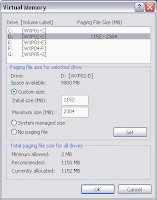
6. Then click Change under the Virtual Memory section. Here you can select any drive partition and set either ‘Automatically manage paging file size for all drives’; ‘Custom’; ‘System Managed’ or ‘No page file’.
7. Finally, click Set before going on to the next partition. (always remember to click Set for changes to take effect)


To turn off the ‘Automatically manage paging file size for all drives’; uncheck the box to do so. Check the box to turn it on anytime you wish to make use of this feature. In both cases remember to click OK. Anytime you decrease the size of your paging file, you need to restart the computer before changes can be applied. On the other hand, you do not require a restart if you increased the page file size. As always if you are not sure of what do to select “System Managed”. To do this in XP, read my post on “How To Improve Your Computer’s Performance In Win XP”.


Well, thanks for reading and hope this has been helpful to you. I will be glad to hear from you in the form of emails and comments.

Monday, 19 January 2009

How To Improve Your Computer’s Performance In Win XP

Anyone who deals with the mystery machine (computer) knows that performance is always a problem. Performance problems tend to occur after using the computer for a while. The last performance problem, I had to deal with was for a friend whose computer suddenly went slow and kept displaying the message “Your system is low on virtual memory”. If you are one of those with a slow computer or just thinking of how to improve or optimise your computer’s performance, then here is the way to do it. The steps described here will also take care of the message above and enhance your computer’s performance.

What is a Virtual Memory (or Page File)?
Virtual memory or page file is an extension of the computer's physical memory (RAM*). The moment our total RAM or physical memory is used up, Windows automatically takes a small amount of hard drive space and uses it like a real memory. This frees up space in the RAM to load a new application. This enables us to run multiple programs at once.
Virtual memory is much slower than physical memory or RAM. When you don't have enough RAM, the operating system has to constantly swap information back and forth between RAM and the hard disk. This is called thrashing, and it can make your computer feel frustratingly slow.
By default, Windows automatically creates virtual memory or page file during installation. The size of the page file created is based on the amount of physical memory present at the time of installation. For example, Windows XP creates a virtual memory 1.5 times the size of RAM in the computer.
*RAM = Random Access Memory

Setting up Virtual Memory
Now, here is how to optimize your page files or virtual memory. Your main objective here is to improve system performance and also to avoid getting the message “Your system is low on virtual memory”.

1. Click Start, then open the Control Panel
2.Double click the System applet to open “System Properties”
3. Click the Advanced tab and then click Settings in the “Performance” section
4. Click the Advanced tab
5. Then click Change under the 'Virtual Memory' section. Here you can select any drive partition and set either ‘Custom’; ‘System Managed’ or ‘No page file’.
6. Finally, click Set before going on to the next partition. (always remember to click Set for changes to take effect)

If you choose ‘Custom’, I recommend you do the following:
For Initial size (MB): Input at least 1.5 times the size of your current RAM
For Maximum size (MB): Input at least 2.5 to 3 times the size of your current RAM.
Do not go lower than the size of physical memory and if you are not very sure of what to do always choose “System managed size” and never under any circumstance select “No paging file”. Also, remember that virtual memory is measured in megabytes (1024 MB is equal to 1GB).


Finally, note that there are other ways of getting to the virtual memory section and the steps above is just one of them. To do this in Vista watch out for "How To Adjust Virtual Memory In Windows Vista" on this blog.
Thank you for reading and remember to leave your comments and subscribe.

By: Elliot Senya

Thursday, 15 January 2009

Understanding the Network Around You

Introduction
In this post I will be defining some commonly used terms that we come across in our day-to-day interaction with our networks both at home and in the office. I believe this will enhance your understanding of exactly what people mean when they mention such words.
The following definitions feature heavily in any form of network infrastructure.
I am very sure many advance users already know exactly what the following terms are but I’ll take the trouble to explain them again for the sake of those who are new to the topic.
**To open a link in new window, "Right Click" on the link and click on "Open Link In New Window"**

Wireless Network
Wireless networks enable a number of computers and devices to communicate with one another without the use of cables (wires) hence the name wireless. The most common type of wireless networks is the Wi-Fi (Wireless Fidelity) network. One of the main problems with wireless networks in their early days was speed of communication between devices within the network. But over the years this problem has been drastically improved through modern standards and technologies. The faster the network speed the quicker the movement of files and data between computers. These days most wireless signals including
Bluetooth devices transmit between frequencies of 2.4 and 5 GHz with data speeds up to 54 Mbps (megabits per second). Another issue was security of the wireless network but unfortunately I am not going to explore that area in this write up.


A typical representation of a wireless network (source: www.microsoft.com)

Some of the advantages of wireless networks include easy setup due to its simple nature, ability to add new stations with less technical difficulties, and freedom of movement for users as stations can be mobile (say laptop users).

But What Is A Network?
A network can be described as a group of computers and devices connected to enables us share resources such as information and data. Network components may include the following though not limited to these: Network Interface Card (NIC)*, Cables, Routers, Switches, Hubs, Servers and operating systems.
Please note that apart from cables, all the other components can be found in a wireless network. However a minimal amount of cables can be found in a wireless network. For example, the cable used to connect the wireless router to the computer or cables connecting to the
Internet Service Provider (ISP). Hence wireless networks are not totally devoid of cables as there are many circumstances where cables are used in other to achieve a desired purpose.
*Network Interface Card (NIC) can also be referred to as a network adapter.

Server
In general, a server is a computer program that provides services to other computer programs (and their users) in the same or other computers. This means that the server is the software component and not the hardware. Many people usually refer to the computer that a server program runs in as a server. It is also possible to run multiple servers on a single physical computer. For example, one computer on a network can be used to run a
Print Server and a Mail Server simultaneously.

Clients
A client is the requesting program or user in a
client/server relationship. This also defined by others as the computers that require services from the network. For example, a user of a Web browser is a client requesting for pages from servers all over the Web. The computer handling the request and sending back the HTML­ file is the server.

Access Points
Access points are the locations where network devices and computers can access the network. For a
local area network (LAN), an access point could be an Ethernet hub or switch and for a wireless network a wireless router. In a wireless network, multiple devices can connect to the network through a single access point.

Topology
This is the physical layout of the network. Common network topologies include bus, ring, star, tree, mesh and many more. Sometimes a network may consist of two or more topologies. This is known as hybrid topology.


An example of a network topology (source:
http://www.edrawsoft.com/)

Protocol
The simplest definition for a protocol would be given as the set of rules used to establish communication between network devices. It is also defined in other places as the standard that controls the connection and data transfer between network devices. The second definition is more of an extended version of the first. Protocols control almost every aspect of networking from software to hardware. They give meaning and direction to everything that goes on in the world of computing and networking. Common protocols include;
Internet Protocol (IP), Transmission Control Protocol (TCP), User Datagram Protocol (UDP), Hypertext Transfer Protocol (HTTP) and Dynamic Host Configuration Protocol (DHCP).
Others include
File Transfer Protocol (FTP), Telnet (Telnet Remote Protocol), Post Office Protocol version 3 (POP3), Simple Mail Transfer Protocol (SMTP), Internet Message Access Protocol (IMAP) and many more. In fact, there are thousands of them with new ones being developed year in year out by the Internet Engineering Task Force (IETF) and other similar organizations under the International Telecommunication Union (ITU).

Conclusion
Hope you leave this blog with a little bit more understanding of some of what the IT guys mean when they mention such words as server, protocol and all the rest. It’s impossible to cover every single component in a network here so whenever you come across something you don’t understand and you feel embarrass to ask just drop me a hint in the form of a comment. I will be more than happy to help. Let me know what you think about this post through your comments. As this is my first post I believe there is plenty of room for improvement.
Don’t forget to bookmark and visit this blog as often as you can. This is the first of many posts to come. My next blog will be about how to install and configure your wireless network. Don’t forget to watch the videos in the media player below as there are some cool tricks there to learn. Enjoy the blog.

By: Elliot Senya

Thursday, 8 January 2009

Computer Support in 2007

I intend to make available easy to follow information on how to sort out basic problems with your desktop, laptops, and other peripherals. Other areas I will be covering include: Adware, Anti-virus, Spyware and computer networks. I believe this will help make your personal computer experience problems free. Remember to check out the links; they will be the key to solving most of your problems. To all my friends who call me in the middle of nowhere to help fix their computers, try and consult my blog first. Enjoy yourselves and the blog.
Wish you all the best in the new year.
Thank you.

Enter your email address:

Delivered by FeedBurner